How to Choose Best Kindle Styluses?
The best Kindle styluses are the ones that match your exact Kindle or Fire model, because compatibility changes by device generation and brand. Start by checking Amazon or the manufacturer specs for your screen type and model name, then confirm the stylus is listed as supported for that specific hardware.
When you compare options, focus on three details that directly affect comfort and accuracy. Look for pressure sensitivity for more natural strokes, a tip material that feels right for your screen, and a solid fit that does not loosen during writing or drawing.
If you mainly want easier reading control, a remote page turner can be a better fit than a stylus for some setups. Still, if you plan to write notes or annotate, choosing a stylus designed for your device model saves time and avoids compatibility surprises.
Compatibility First When Shopping For The Best Kindle Styluses
When people search for the best kindle styluses, they often assume any “active” pen will work the same across devices. That assumption usually breaks the moment you change models or generations, because support for the digitizer and the app layer is not universal.
Compatibility is where most buyer disappointment starts. A stylus can look similar, use the same charging approach, and still fail to produce the expected pressure, line quality, or even basic cursor control on a different e-ink tablet.
It also explains why some styluses get strong reviews for one Fire model yet feel unreliable elsewhere. One example is the “Made for Amazon” stylus pen tuned for the Fire Max 11 (2023) and Fire HD 10 (13th Gen, 2023), where users report consistent results. On the other hand, some “C1” styluses have been reported to work on the reMarkable 2 but not on devices like Kindle Scribe or Boox Note Air3, so you should confirm support per model before paying.
Pre-Buy Checklist That Prevents Wrong Styluses
A fast checklist saves money, especially when you are comparing listings that all sound similar. Start with the manufacturer’s packaging details or the official compatibility list on the brand’s website, then verify what the pen actually supports on your exact device generation.
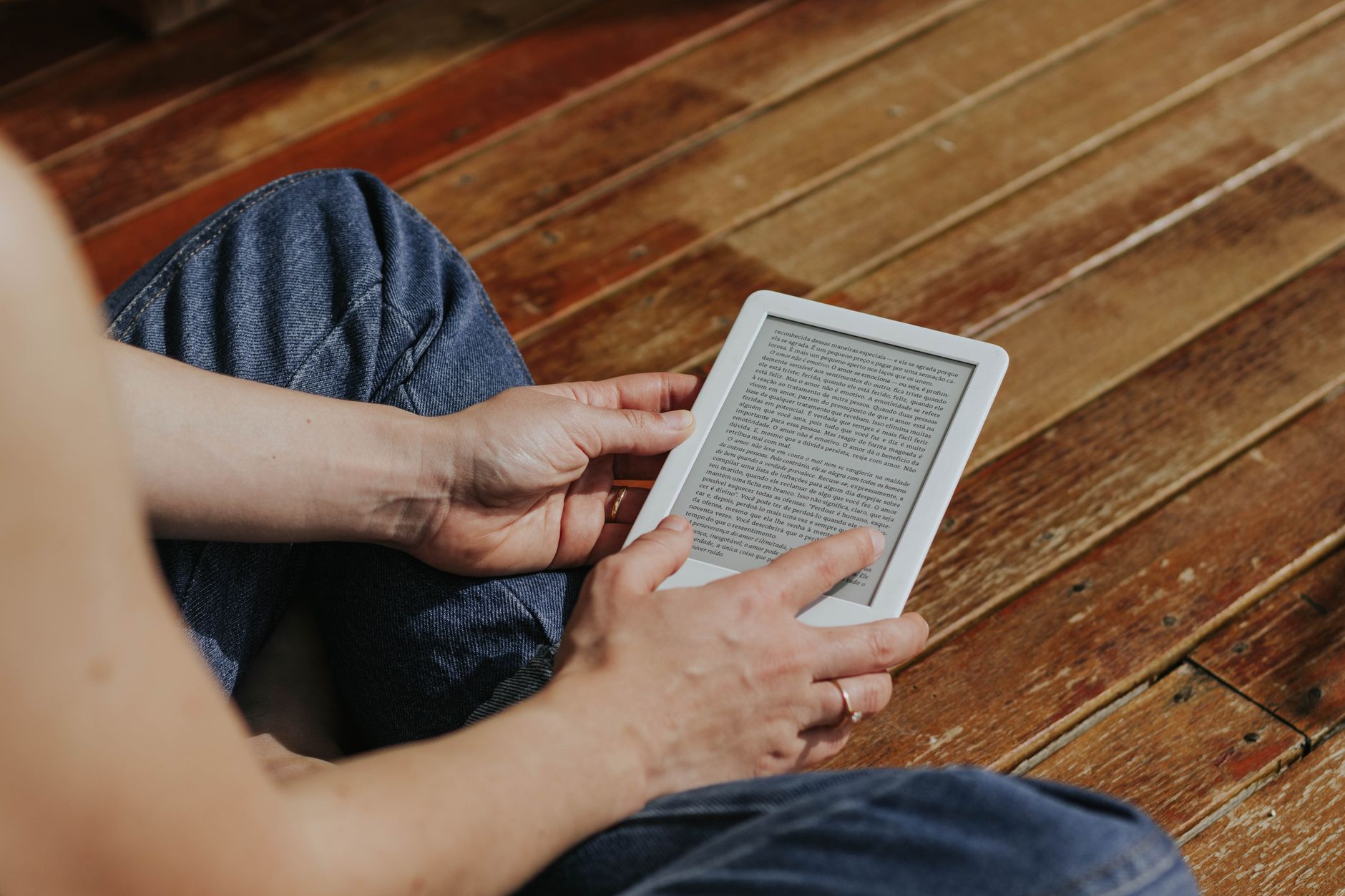
You can also sanity-check expectations by reading user feedback for the specific model pairing you plan to buy, since reviewers often mention latency, palm rejection behavior, and whether pressure feels consistent in real note apps.
- Compatibility should match your exact Fire or Kindle e-reader generation
- Stylus Tip Material affects smoothness, friction, and how the screen surface feels during long writing sessions
- Pressure Sensitivity determines whether you can vary stroke thickness for handwriting or sketching
Before you commit, check return policy terms too. If the pen pairs but pressure does not work, you want an easy path to swap rather than “making it work.”
Feature Match For Writing, Drawing, And Note Control
The best choice depends on what you want to do on the screen. If your priority is clear handwriting, focus on pressure sensitivity and tip feel. If your priority is sketching, focus on how responsive the pen feels, plus whether your apps accept the pressure signal.
The table below compares the kinds of styluses people commonly buy for e-ink devices and how their compatibility and behavior usually differ in practice.
| Stylus Type | Compatibility Reality | Writing Behavior |
|---|---|---|
| Made for Amazon Fire Stylus | 2 target models reported for 2023 Fire Max 11 and 13th Gen Fire HD 10 | Pressure support reported; smooth tip; consistent drawing in supported apps |
| Generic C1 Active Stylus | Reports show mismatch on some Kindles and Boox models | May act like limited pressure; lines can feel flat in note apps |
| Standard Capacitive Stylus | Often works for basic tapping across many screens | No real pressure control; best for tapping and simple marks |
| Replacement Tip Pen | Works only when it matches your pen’s tip system | Improves consistency when the original tip wears down |
| Remote Page Turner | For reading control on compatible e-ink readers | No handwriting; buttons trigger page turns without writing input |
Use pressure sensitivity as a decision shortcut. If your app shows pressure response in handwriting or drawing tools, you will usually notice a meaningful difference in stroke thickness and shading. If pressure is missing, you can still write, but it feels more like “single weight” input.
Also pay attention to tip wear. Even when two pens both support basic input, one tip material can feel more scratch-resistant over time, especially if you write for an hour or more in a single session.
When A Stylus Is The Wrong Tool For Reading Control
If your main goal is reading control rather than writing, buying a stylus can be a mismatch. Many people want a quick way to turn pages without touching the device screen, and a remote page turner can do that with less friction than any pen setup.
A common mistake is treating every “Amazon stylus” style product as interchangeable across the Fire and Kindle lineup. Another common issue is focusing only on tip size or brand name while ignoring the part that decides everything: whether the pen supports your exact generation and your preferred app workflow.
- Confirm device model and generation compatibility from the official spec or packaging details
- Decide your goal first, then choose pressure and tip feel based on handwriting or drawing needs
- If you only want page turns, consider a remote option to avoid paying for features you will not use
Finally, keep your expectations grounded in how you read. For note taking, the right pen improves writing comfort and control. For long reading sessions, a page-turn accessory can feel more natural because it reduces screen contact and keeps your reading flow uninterrupted.
Best Kindle Styluses: How Do You Choose the Right One?
How Can You Check Compatibility for Kindle and Fire Styluses?
Stylus support varies by your exact Kindle or Fire model and generation, so verify compatibility on the manufacturer’s packaging or product page before buying, since some common stylus types work on certain e-note devices but not others.
What Features Matter Most for Writing and Drawing on Kindle?
Look for compatibility, a fine tip material that matches the feel you want, and pressure sensitivity if you plan to write or draw, and if your main goal is reading control, consider a remote page turner instead of relying on the stylus.
Choosing The Best Kindle Styluses For Your Exact Model
Finding the best Kindle styluses comes down to matching your specific Kindle or Fire model, since compatibility changes by device generation and brand. Before you buy, verify the support details, then focus on the stylus tip material and pressure sensitivity so writing feels accurate and the screen responds the way you expect. A model labeled for your exact tablet, like the “Made for Amazon” option for certain Fire models, is a safer bet, and if you mainly want easier reading control, a remote page turner can be a practical alternative.
Check price on Amazon →