Best Amazon Device Memory Cards for Fire TV
Amazon device memory cards, usually microSD cards, help you add extra storage to compatible Fire TV devices and Fire tablets. Many buyers choose well-known brands like SanDisk for reliable performance and easy setup.
If you want to watch more content offline or keep more apps and media on your device, start by checking your model’s compatibility. After you insert the card, you typically enable it from the device’s Settings, then Storage, so the system can use the extra space.
In this guide, you will find the best picks based on capacity, user feedback, and real-world setup notes like format and transfer speed. You will also get simple tips for choosing the right size so you do not end up with a card your device cannot fully use.
Why Storage Upgrades Are Tricky on Fire Devices
Fire tablets and Fire TV boxes are convenient, but their built-in storage fills up fast. Downloads, cached videos, and offline apps can eat space quickly, especially if you switch between streaming apps and games.
This is why many people search for the best amazon device memory cards. The problem is that not every microSD card works smoothly, and some can feel slower once the device starts using them for apps or media storage.
Before you buy, focus on two things. The card must be compatible with your specific Fire model, and it must support the way your device expects to read and write data.
- Check your device’s maximum supported microSD size
- Choose cards with speed ratings that match app and media needs
- Plan for formatting so the card actually shows up in storage settings
What Compatibility and Formatting Really Mean
Amazon Fire devices are picky about microSD cards, and the “it fits” assumption often fails. Compatibility depends on what the device can detect, how it formats the card, and which features it enables after insertion.
In practice, you will usually see the option to enable the card through the device’s Settings screen, often under Storage. If the device enables it, that means it recognized the filesystem and considered it ready for use. If it does not, the card may be unsupported, faulty, or the format may not meet the device’s expectations.
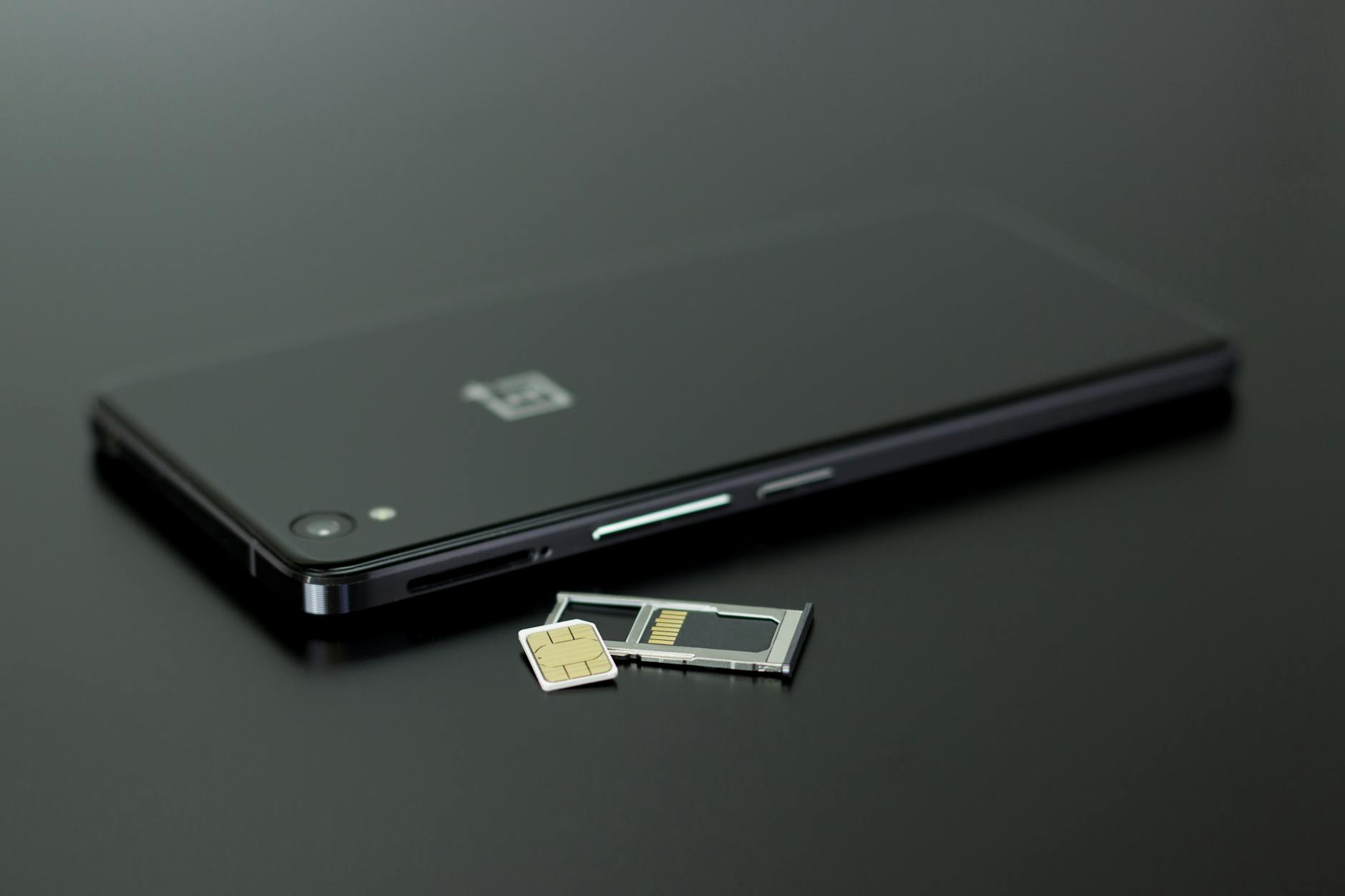
Here is a simple checklist to reduce frustration before you insert the card. This makes the difference between a quick setup and repeated “card not available” messages.
- Confirm the Fire model supports the card’s maximum capacity
- Prefer U1 or U3 speed ratings for smoother performance
- Be ready to let the device format the card during setup
Best Options People Actually Buy for Fire Tablets and Fire TV
When you look for reliable picks, it helps to follow what real buyers rank and review. Current best-seller activity can also hint at which capacities and brands Fire users trust most, and the current best-seller lists tend to reflect that.
SanDisk is a common choice because many Fire users report smooth setup after insertion, followed by an enable step inside Settings and Storage. A frequently mentioned example is a SanDisk 128GB microSD memory card aimed at Fire tablets and Fire TV, often rated around 4.6 out of 5 stars by large review counts.
| Recommended Capacity | Speed Spec | Typical Benefit on Fire |
|---|---|---|
| 64GB | U1 | Budget media expansion |
| 128GB | U1 or U3 | Apps and offline videos |
| 256GB | U3 | Bigger libraries |
| 512GB | U3 | Long-term offline storage |
| 1TB | U3 | Maximum capacity builds |
The “best” option depends on your usage. If you primarily store movies and TV downloads, 128GB or 256GB is often a sweet spot for cost and convenience. If you install lots of games or keep many offline files, higher capacities like 512GB can reduce the pressure to delete content.
Always verify that the listing states compatibility with your Fire device family, because “works in one tablet” does not guarantee “works in your Fire TV model.”
Quick Setup Checklist and Common Mistakes
After you insert the microSD card, take the time to finish the device setup properly. Many users follow a simple flow where the card becomes visible and then is enabled from Settings to Storage.
Use this setup checklist to keep things predictable. It also helps if you are moving from an older card to a new one.
- Insert the card gently and reboot if your device does not detect it immediately
- Go to Settings and open Storage to enable the microSD card
- Let the device complete any formatting prompt before downloading or installing content
Common mistakes are easy to avoid. Do not pull the card out while the device is formatting, and do not buy the largest capacity without checking the maximum supported size for your exact Fire model. If the device fails to recognize the card, try a reputable brand with the expected speed rating first before troubleshooting your apps.
Best Amazon Device Memory Cards: Which MicroSD Cards Work on Fire Tablets and Fire TV?
Which MicroSD Specifications Should You Look for in the Best Amazon Device Memory Cards?
Check that the card is microSD and choose a capacity your Fire device supports, then look for reliable brands and good read speed ratings so apps, photos, and downloads work smoothly.
How Can You Enable a Memory Card After Installing It on an Amazon Fire Device?
After inserting the card, open Settings on your device, go to Storage, and select the memory card option to allow the system to use available space for downloads and media.
Choosing the Best Amazon Device Memory Cards Makes Storage Feel Effortless
If you are shopping for best amazon device memory cards, focus on compatibility with your Fire tablet or Fire TV, then pick the capacity that fits how you watch, download, and install apps. A reliable microSD card works best when you install it correctly and enable it in Settings under Storage so the device can recognize the extra space right away.
Check price on Amazon →